
AI Sticker Generator

WizGenerator's AI Sticker Generator turns a visible subject into a sticker concept with composition, visual family, scene, atmosphere, color, and exclusions.

Verified tool facts

Best for

Creators, merch designers, and teams who need a sticker concept for a defined subject, crop, atmosphere, color system, and production use.

Cost
Free
Sign-up
Not required
Input
Visible subject
Art directions
6 options
Output
Sticker directions
Controls
Crop + finish
Not for

Print certification, cutline approval, rights clearance, guaranteed uniqueness, or a full merchandise identity system.

Quick-fill an example

Review the Generated Result

Ready
Saved AI example

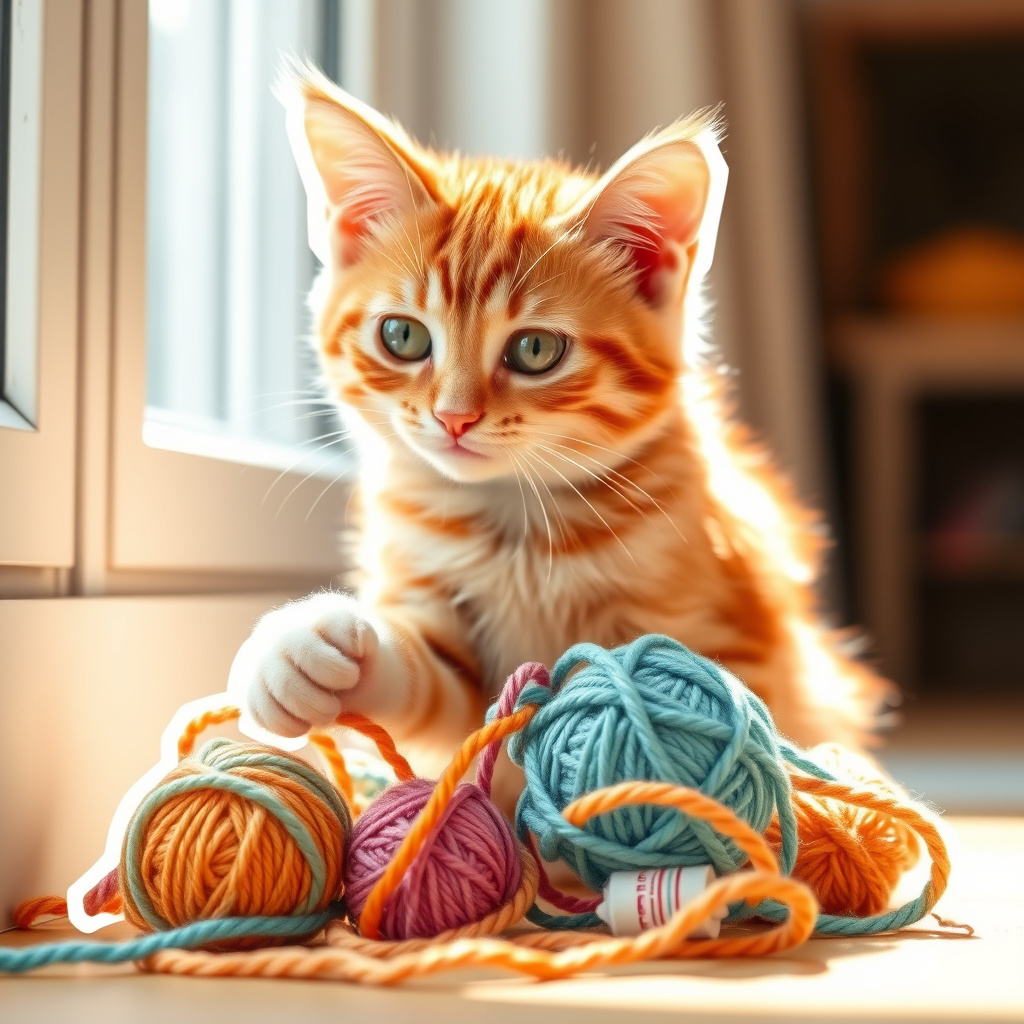
Generated by the live AI Sticker Generator from the selected sample. Generate again to replace it with your own result.

Generated image direction 1
Direction 1
Advertisement

Design a Sticker That Still Reads After the Cut

Give the Subject a Strong Silhouette

A sticker has a small visual window. Describe the subject that must be visible and decide what the viewer should recognize first. A character, object, mascot, phrase, or symbol can carry the mark, but secondary detail should support that focal idea.

Choose a view and crop that make the subject readable. A busy scene may look rich on a screen and turn into noise after reduction or cutting. Protect the outline, face, gesture, and any text that the sticker needs to communicate.

Use Art Direction to Clarify the Mood

Art direction sets the visual family. Flat shapes, brush texture, bold geometry, hand-drawn lines, translucent wash, and low-resolution pixels each alter the edge and expectation. Choose one direction, then let setting, light, and palette reinforce it instead of adding unrelated effects.

Mood should support the subject. Strong color can add energy, while quieter values can make a character feel calm or thoughtful. Check contrast against the surface where the sticker will live, not only against the generator's preview.

Plan the Border and Production Shape

Physical stickers need a clear boundary. Leave space for an outline, border, bleed, and cutline around the subject. Thin details, narrow gaps, and tiny lettering may disappear in print or at a small digital size. A sticker direction should explain what can simplify when production requires it.

Decide whether the asset needs transparent background, a white border, a die-cut contour, or a sheet-friendly rectangle. The right shape depends on the printer, material, screen, and use. Treat those constraints as part of the design rather than a final repair.

Review the Asset Before You Reuse It

Inspect the image at the actual size and on light, dark, textured, and transparent surfaces. Check edges, hands, faces, symbols, text, artifacts, and any visual reference that may create a rights problem. Test a one-color or simplified version when the sticker belongs to a set.

Search similar marks and review references, fonts, characters, trademarks, and commercial-use terms. A generated concept is not a production file or clearance certificate. Redraw, export, approve, and document the final asset through the workflow that will print or publish it.

Choose a Sticker-Design Workflow

A AI sticker generator, a production editor, and a print vendor workflow solve different stages of making stickers. Choose by whether you need a visual concept, controlled file preparation, or material, cutline, and fulfillment checks.

AlternativeChoose whenWatch for
Sticker design guideLearning silhouette, outline, cutline, contrast, composition, and print considerations before making a sticker.A guide teaches the principles but leaves you to invent the subject, visual direction, and finished concept.
Print design workflowPreparing transparent files, borders, bleed, color, resolution, and exports for a real sticker vendor.Production tools provide technical control but do not replace the early decision about what the sticker should communicate.
ChatGPTExploring sticker subjects, visual metaphors, art directions, and merchandise variations through conversation.A general conversation still needs visual inspection, exact text checks, production testing, and rights review.

AI Sticker Generator Questions

What should I include in a sticker brief?

Describe the visible subject, composition, crop, art direction, setting, light, palette, mood, surface, border or cutline needs, exact text, and exclusions. Say what must remain recognizable at the final size. Production context helps the image survive beyond a screen preview.

Can I control the sticker's style?

Yes. Choose a visual family such as crisp vector, textured paint, bold poster, inked linework, wash-based color, or pixel treatment, then add scene and atmosphere. One coherent family usually reads better than a pile of unrelated effects.

Can it create a die-cut sticker?

It can guide a composition and border direction, but it does not certify a cutline, bleed, print color, material, resolution, or vendor template. Confirm production requirements with the printer and simplify details that will not survive the final size.

Can I put words on the sticker?

Use the visual exclusions and brief to state whether text belongs. Image generation can distort lettering, so inspect spelling and finish exact typography in a controlled design workflow when a phrase, name, or brand mark must be correct.

Can I sell the generated sticker?

Review the final asset for reference, character, font, stock, trademark, and license issues before selling it. The generator does not prove ownership, exclusivity, clearance, or permission to recreate another creator's distinctive work. Keep a record of the review.

Will the sticker work on every surface?

No guarantee. Test the asset at its actual size on light, dark, textured, transparent, digital, and printed surfaces as needed. Contrast, border, finish, and color can change across materials and production methods. Test before a public release.

Next Steps

Continue with a useful next action based on what you just created.

Next uses for your Configure the sticker generation result

Use the selected sticker artifact as the input for the next concrete task.

Add this generator to any page with a simple embed.

Get embed code