
AI Icon Generator

WizGenerator's AI Icon Generator turns exact words or initials and an icon job into original mark directions shaped by symbol, structure, visual language, palette, background, and exclusions.

Verified tool facts

Best for

Product teams, designers, and creators who need original icon directions anchored in one concept, symbol, structure, visual language, and usage context.

Cost
Free
Sign-up
Not required
Required inputs
Words + icon job
Structures
6 options
Output
Icon directions
Controls
Symbol + style
Not for

Design-system implementation, accessibility certification, license clearance, guaranteed uniqueness, or replacing iconography review.

Quick-fill an example

Review the Generated Result

Ready
Saved AI example

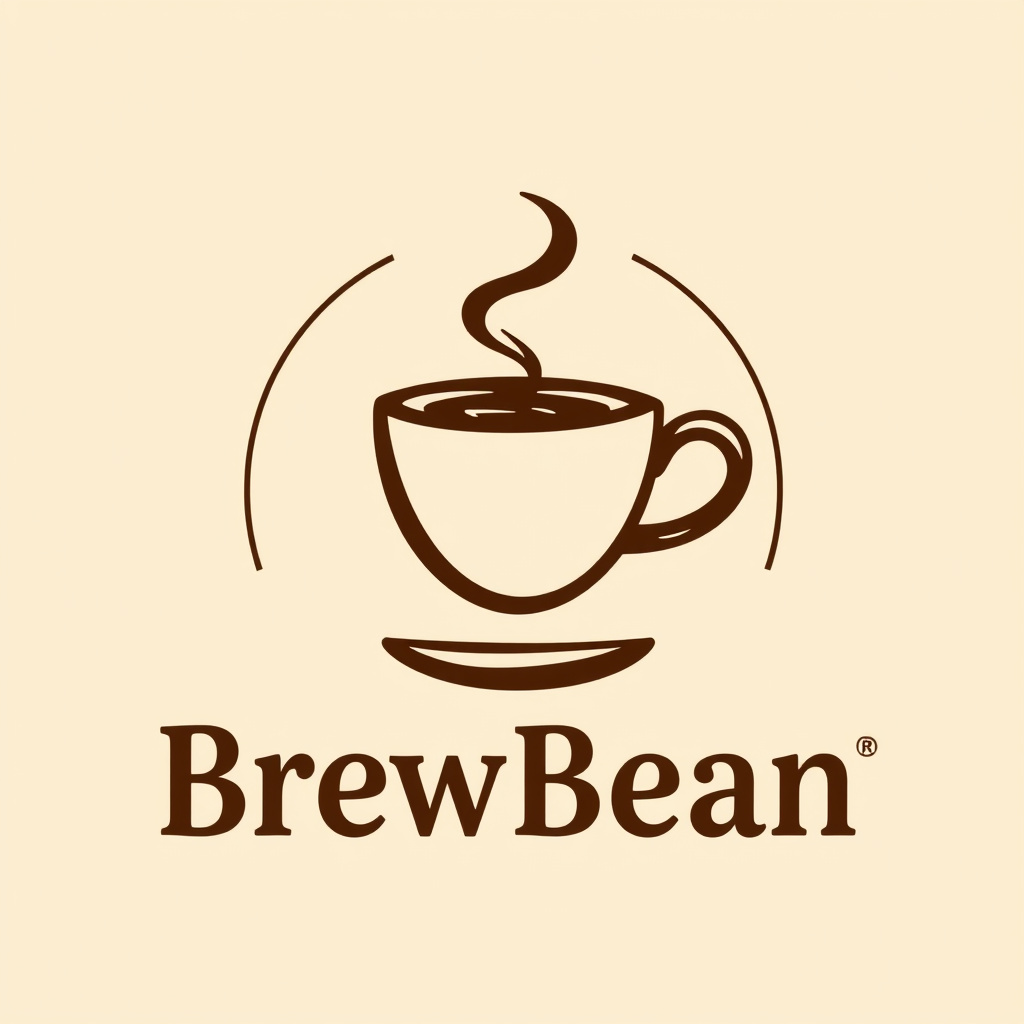
Generated by the live AI Icon Generator from the selected sample. Generate again to replace it with your own result.

Generated image direction 1
Direction 1
Advertisement

Design an Icon That Reads at Small Size

Define the One Concept

An icon works best when it communicates one action, object, or concept. Name the concept and the surface where the icon will appear. A toolbar control, status symbol, document illustration, and brand mark may use different detail and familiarity even when they depict a similar idea.

Keep exact words or initials separate from the symbol brief. Keep visible wording limited to the text the icon needs. If the concept needs a label to become clear, plan that accessible or visible label instead of packing more objects into the drawing.

Choose a Symbol People Can Read

Start with one visual metaphor and remove unrelated parts. A strong silhouette can survive reduction. A pile of literal objects may explain the idea in a large canvas and become noise in a 16-pixel interface. Check the symbol against the conventions your audience already knows.

Decide whether the icon should stand alone, pair with words, or sit inside a badge or emblem. The mark structure should follow the surface, not a preference for decoration. A symbol that changes meaning without its caption needs review before it ships.

Keep the System Consistent

Visual language includes grid, stroke weight, corner treatment, fills, negative space, and color. Match those decisions to the surrounding icon library. A single icon can look polished and still feel wrong when its optical size, line endings, or density disagree with its neighbors.

Test one-color, light, dark, disabled, selected, and high-contrast versions. Do not use color as the only status signal. Provide a text label, accessible name, shape, or position when the icon carries an action or state.

Test the Asset Before Reuse

View the icon at its actual size and on the real background. Inspect edges, small gaps, text accuracy, alignment, and whether the concept remains recognizable without a private explanation. Test localization, RTL layouts, touch targets, keyboard focus, and screen-reader labels when the icon belongs to an interface.

Search similar symbols and review asset, font, reference, and trademark rights. A generated direction is not a library-ready file by itself. Redraw, export, name, document, and approve the final asset through the system that will maintain it.

Choose an Icon Workflow for the System

An AI icon generator, an icon library, and a design system solve different stages of icon work. Choose by whether you need visual directions, ready-to-use assets, or consistent components and states across a product.

AlternativeChoose whenWatch for
Icon librarySelecting tested symbols with documented style, naming, stroke, and usage rules for common interface needs.A library provides consistency and speed but may not cover a new concept or brand-specific visual direction.
Design systemManaging icon tokens, components, states, accessibility, themes, and implementation across a product.A system handles reuse and maintenance, while a generator is faster for exploring an initial symbol and structure.
ChatGPTExploring icon metaphors, labels, audience understanding, and alternate visual directions through conversation.A general conversation still needs visual testing, exact asset production, accessibility checks, and rights review.

AI Icon Generator Questions

What should I include in an icon brief?

Describe the concept or action, any text, audience, surface, visual treatment, size, and exclusions. Explain what the icon should communicate without a private explanation. The brief should protect one meaning and the context around it.

Can I control the words in the icon?

Yes. Use Exact words or initials for text that must appear, then inspect spelling, spacing, capitalization, and letter shape. Image generation can distort lettering, so finish exact typography in a controlled design workflow when the icon will be published or reused.

How is an icon different from a logo?

An icon often identifies an action, object, state, or small concept inside a system. A logo identifies a brand and may carry more identity, typography, and lockup rules. Some marks serve both roles, but choose the structure and testing method from the surface and meaning.

Will it work at every size?

No guarantee. Test the icon at its smallest and largest uses, in one color, on light and dark backgrounds, and beside the surrounding icon set. A detailed direction may need a simplified small-size version or a separate optical adjustment.

Does it create an accessible icon?

It creates a visual direction, not an accessibility certification. Add an accessible name or visible label when the icon carries meaning, test contrast and focus states, and ensure people do not need color or shape alone to understand an action or status.

Can I use the icon commercially?

Review the final asset for reference, font, stock, trademark, and license issues before commercial use. The generator does not prove ownership, exclusivity, clearance, or permission to recreate another designer's distinctive work. Keep the review record with the final asset.

Next Steps

Continue with a useful next action based on what you just created.

Next uses for your Configure the icon generation result

Use the selected icon artifact as the input for the next concrete task.

Add this generator to any page with a simple embed.

Get embed code