AI Banner Generator

WizGenerator's AI Banner Generator creates a visual layout from a campaign message, exact copy, chosen frame, focal subject, and protected text space.

Verified tool facts

Best for

Creators needing banner layout options for a campaign's focal message, controlled wording, destination shape, image subject, and text-safe zone.

Cost
Free
Sign-up
Not required
Input
Purpose + exact text
Ratios
5 options
Output
Banner layouts
Controls
Safe-area rules
Not for

Ad targeting, live publishing, guaranteed conversion, logo design, or exact print color calibration.

Quick-fill an example

Review the Generated Result

Ready
Saved AI example

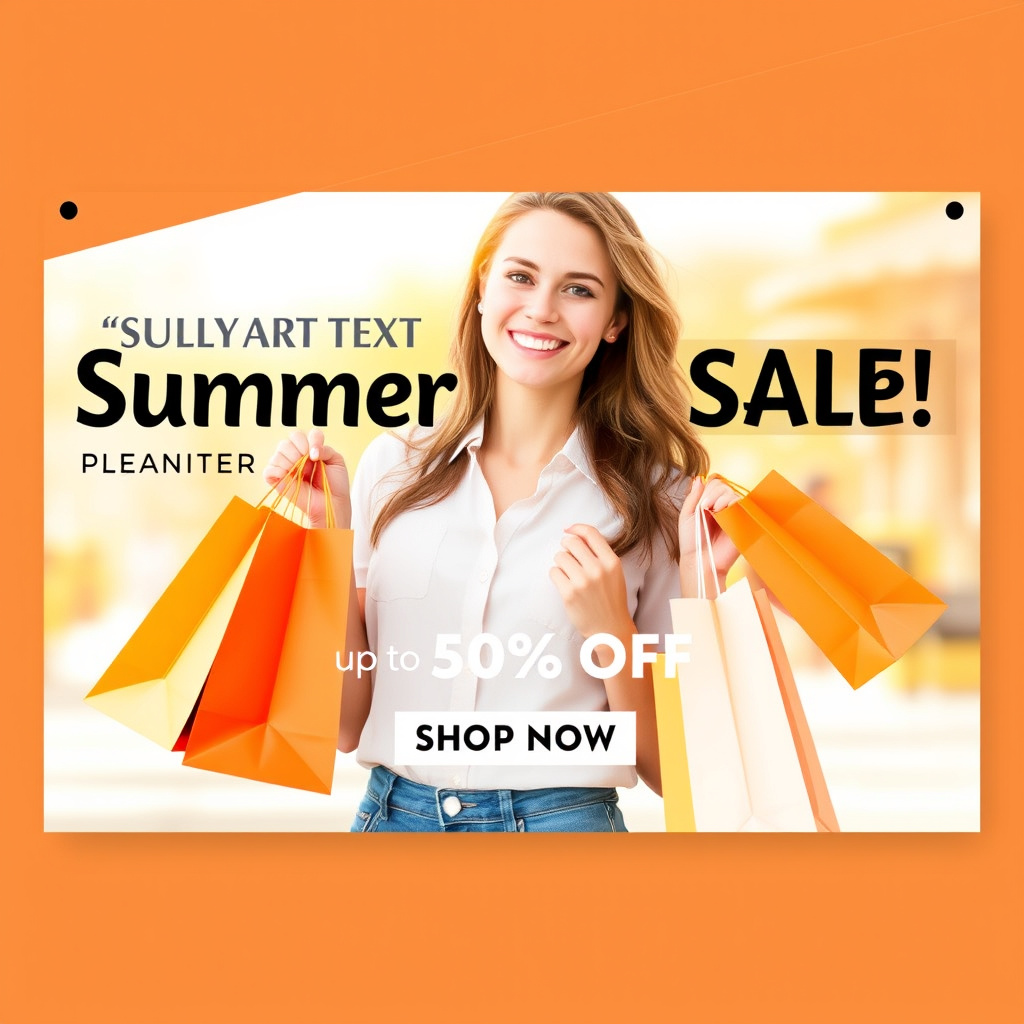
Generated by the live AI Banner Generator from the selected sample. Generate again to replace it with your own result.

Generated image direction 1
Direction 1
Advertisement

Build a Banner That Reads at a Glance

Choose the One Thing to Notice First

A banner has a small window to make its point. Decide what the viewer must notice first: a benefit, event, product, image, or action. Give that one element the strongest contrast or space. A secondary detail can support the message, but it should not compete with it.

Write the promise in one plain sentence before choosing effects. A banner that tries to announce a launch, explain a feature, list three benefits, and ask for a click has no clear first glance. Remove the work that belongs on the page after the click.

Keep Exact Text Separate From the Image

Visible copy deserves control. Write the exact headline, label, price, date, or call to action in the text field instead of asking an image model to invent letters. Decide which phrase is primary and how the supporting line earns its place. Short words still need enough contrast and size to read.

Plan line breaks with the layout. Do not let a decorative subject, texture, or border touch the text area. Keep a plain text record beside the design so the message remains searchable, translatable, and available to assistive technology.

Design for the Ratio and the Safe Area

Canvas ratio changes the composition. A wide banner can separate image and copy. A portrait crop may need a centered subject and stacked type. A square post has less room for a long promise. Choose the destination before you lock the visual subject, then leave a safe area where text, faces, logos, and important edges will survive the crop.

Responsive work is not a simple resize. A headline may need fewer words, a subject may move, and a background may need more space in one ratio. Treat each required frame as a layout to test, not a file export to hope for.

Test the Message Before You Publish

View the banner at the size and speed where the audience will meet it. Check the headline in the preview, the action at thumbnail scale, and the contrast against every background behind the text. Confirm that the image does not carry a claim, logo, or visual promise the copy cannot support.

Test mobile and desktop crops, keyboard or screen-reader equivalents where relevant, and the link or destination behind the action. Keep the source brief, exact copy, and final approval notes together. A banner succeeds when the viewer understands the message and the next move without extra explanation.

Choose a Banner Workflow for the Campaign

A AI banner generator, a design editor, and a media platform solve different parts of campaign work. Choose by whether you need layout directions, exact production control, or publishing and performance management.

AlternativeChoose whenWatch for
CanvaBuilding editable banners with controlled typography, templates, brand assets, layout, and export options.A design editor gives production control but requires you to make the hierarchy and composition decisions yourself.
Adobe design workflowProducing campaign assets with advanced image, type, layout, and brand-system control in a professional creative suite.The broader workflow takes more setup, while a focused generator is faster for exploring a first layout direction.
ChatGPTDiscussing a campaign message, audience, and possible visual directions through open brainstorming.A conversation does not guarantee exact typography, responsive crops, safe areas, or final design files; you must validate the banner yourself.

AI Banner Generator Questions

What should I include in a banner brief?

State the message, words, destination frame, focal image, visual language, and protected areas. Set the primary visual priority and list the objects or treatments that must stay out. A clear brief gives the layout a priority instead of asking it to solve every communication problem at once.

Can the generator write the text inside the image?

Use Exact visible text for copy that must appear. Image generation can render letters incorrectly, so inspect the result and add final typography in a controlled design workflow when wording, price, date, or brand spelling must be exact.

Which canvas ratio should I choose?

Choose the ratio that matches the destination, such as wide, portrait, square, or a print page. The ratio affects safe space, subject scale, and line breaks. Test every required placement because one composition rarely survives all crops unchanged.

Can it make a banner for an advertisement?

It can create layout directions for a campaign or offer, but it does not target audiences, buy media, publish ads, or guarantee conversions. Verify claims, links, branding, disclosures, platform rules, and accessibility before you launch the banner.

Does it check contrast or accessibility?

Use the output as a starting layout and test important text, controls, and images in the actual design. Contrast depends on the exact colors, size, weight, and background. Add accessible text alternatives where the banner carries information the image alone cannot provide.

Can one banner work everywhere?

Not reliably. Different surfaces crop, scale, and load at different sizes. Keep the core promise consistent, then adapt the copy, safe area, subject placement, and export for each required frame. Preview the actual files before publishing.

Next Steps

Continue with a useful next action based on what you just created.

Continue With the Finished Result

Use the selected banner artifact as the input for the next concrete task.

Add this generator to any page with a simple embed.

Get embed code