
AI Twitch Emote Maker

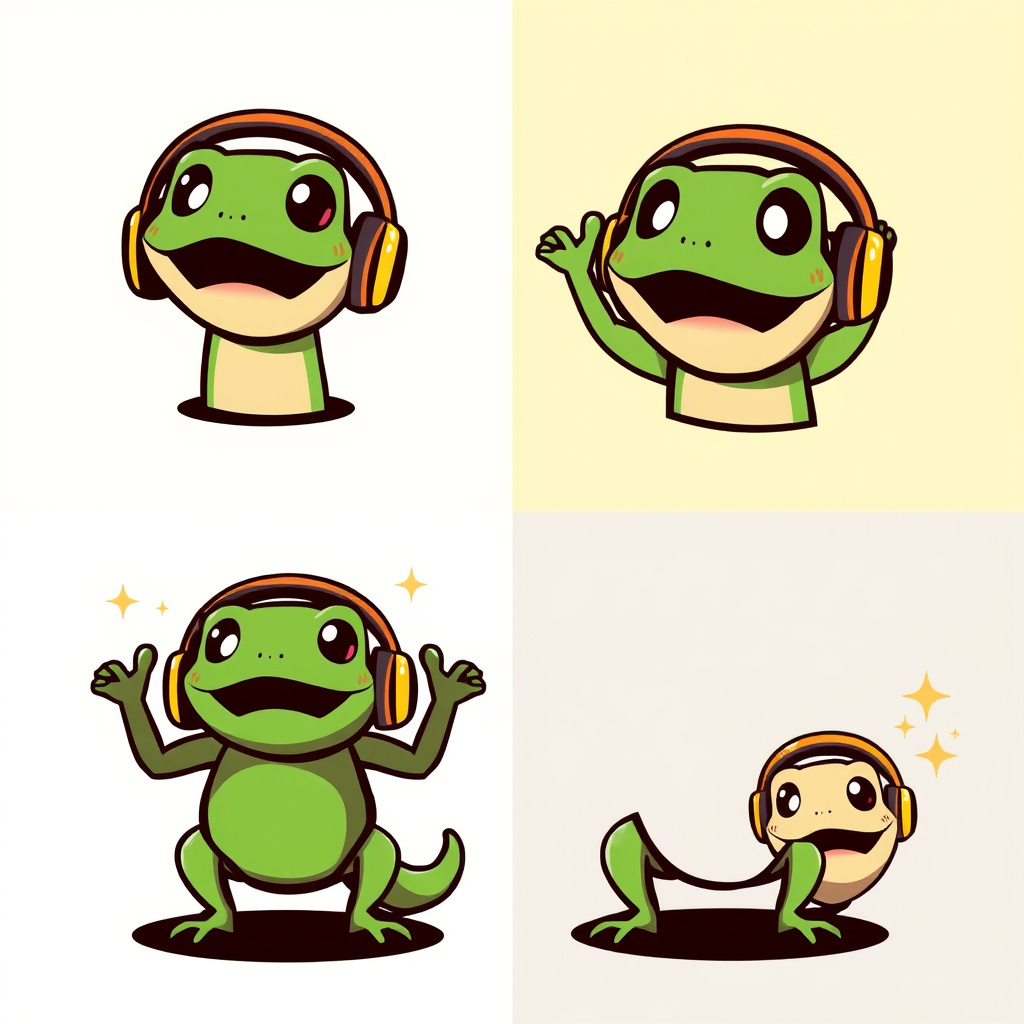
WizGenerator's AI Twitch Emote Maker turns an expression and character description into four stream-emote image concepts for review.

Verified tool facts

Best for

Streamers and communities who need four custom reaction concepts from an expression and character description.

Cost
Free
Sign-up
Not required
Input
Expression and character
Images
4 variations
Ratios
3 choices
Action
Download
Not for

Transparent PNG export, fixed Twitch sizes, animation, upload integration, channel approval, or rights clearance.

Quick-fill an example

Your Emote Concept Variations

Ready
Saved AI example

Generated by the live AI Twitch Emote Maker from the selected sample. Generate again to replace it with your own result.

Generated image direction 1
Direction 1
Advertisement

Make One Reaction Read Small

Give the Emote One Reaction

A small emote has almost no time to explain itself. Choose one reaction that viewers can recognize without a caption: delight, disbelief, approval, panic, welcome, or another specific community signal. Then describe the face and gesture that carry it. A character with three competing emotions becomes a tiny drawing that says nothing clearly.

Give the character a memorable silhouette. One oversized prop, unusual ear, bold hat, or repeated mark can help viewers identify the emote in a fast chat. Keep the detail that supports the reaction and remove background objects that steal attention. The brief should tell the image model what viewers must see first, not list everything the channel has ever used.

Design for a Tiny Preview

Emote artwork loses detail as it shrinks. Use a clear crop, strong contrast, and a feature that survives at the smallest planned preview. Eyes, eyebrows, hands, mouths, and simple props need enough separation to remain legible. Fine texture can make a full-size illustration look rich while turning the reduced version into a dark shape.

Check the silhouette before the palette. A viewer should recognize the reaction from the outline and major color blocks. Keep the background quiet when it competes with the face or gesture. The generator can suggest a concept, but it cannot prove how the image will read at every platform size, display density, theme, or chat speed.

Use Style Without Borrowing Identity

Choose visual properties that serve the channel's tone: thick outlines, flat shapes, expressive eyes, a limited palette, or a sticker-like crop. Describe those properties in your own terms rather than naming a living artist, brand, game, streamer, or copyrighted character. A distinctive community reaction can grow from a simple design system without borrowing someone else's identity.

Text rarely survives a tiny emote and image-generated lettering may be wrong. Prefer a face, gesture, prop, or color cue when the reaction can work without words. If a channel mark or phrase matters, place it in a separate graphics pass and check ownership. The image prompt should establish the visual idea, not pretend to deliver final platform metadata.

Complete the Platform Review

Inspect every variation at large size and at the platform's current small previews. Look for missing eyes, merged hands, unreadable text, extra props, accidental logos, real-person resemblance, offensive gestures, and a background that cannot be removed cleanly. Ask channel owners and representative viewers whether the reaction reads without an explanation.

Prepare the upload asset separately. Check the current Twitch dimensions, file format, size, transparency, animation, content, and channel-permission rules, then test the result in light and dark chat themes. This generator does not create a transparent upload file, approve a channel emote, or clear rights. The streamer or rights holder makes the final decision.

Choose an Emote Concept or Upload Workflow

A text brief can explore a reaction and character, while an emote production workflow handles transparency, exact dimensions, animation, channel context, and platform submission.

AlternativeChoose whenWatch for
Twitch emote guidelinesChoose when you need to check current submission, content, and file requirements before uploading an emote.Guidelines define platform expectations but do not create a custom character or reaction concept.
MakeEmoji emote makersChoose when you want to compare broader emote-making tools and production paths.A production-oriented tool may add export and editing steps that are outside a quick visual concept pass.
AI Image GeneratorChoose when you need a general visual scene or character direction beyond one tiny stream reaction.A general image brief may spend detail on scenery instead of preserving the silhouette and expression an emote needs.

AI Twitch Emote Maker Questions

Does it export a transparent Twitch PNG?
The page provides four downloadable image concepts. Background removal, transparency, platform resizing, file optimization, and upload-ready PNG export require a graphics workflow. Complete those production steps separately. Inspect the selected concept at each target preview before channel use.

Can I make an animated emote?
No. The output is a set of static image variations. It does not create GIF animation, frame timing, motion cleanup, or an animated upload asset. If motion matters, develop the selected concept in an animation workflow and check the current platform rules.

Can I use my own avatar or a photo?
The input is text only. It has no avatar or photo reference channel, so it cannot preserve a person's likeness or edit an existing image. Real-person use needs permission and rights-aware review.

Will Twitch approve the emote?
No. The generator cannot inspect a channel, apply platform rules, submit an asset, or guarantee approval. Check the current Twitch guidelines, test the small previews, review content and rights, and let the channel owner complete the upload decision.

Can I add words or a channel logo?
You can describe a text cue or supplied mark, but tiny generated lettering may be unreadable and logos need permission. Prefer a visual reaction, then add exact type or approved artwork later. Inspect the final file at emote size before using it in chat.

How do I know whether the reaction reads?
View the concept at the platform's smallest planned preview and ask someone who did not see the brief to name the reaction. Check the face, gesture, silhouette, contrast, and key prop. If viewers need a long explanation, simplify the concept before production.

Next Steps

Continue with a useful next action based on what you just created.

Prepare the Emote for Your Channel

After choosing a concept, test it at the platform's current sizes and complete transparency, file, content, rights, and upload checks in a separate workflow.

Add this generator to any page with a simple embed.

Get embed code